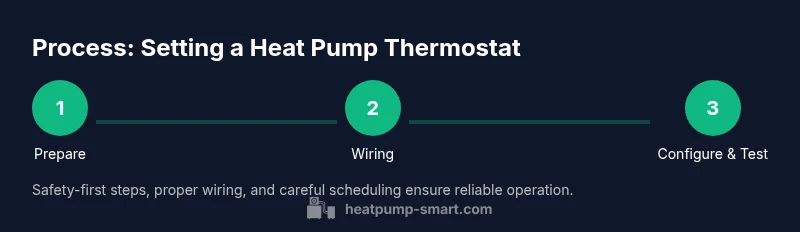
Setting a Heat Pump Thermostat: Step-by-Step Guide
Learn how to set a heat pump thermostat for comfort and energy savings. This step-by-step guide covers compatibility, wiring, scheduling, and verification, with expert insights from Heatpump Smart.


In this guide you will learn how to set a heat pump thermostat for optimal comfort and energy efficiency. You’ll identify your system, adjust cooling and heating schedules, enable eco modes, and verify performance. Gather the thermostat, manual, and a smartphone or tablet for app setup, plus basic tools. This quick overview helps you avoid common mistakes.
Why setting a heat pump thermostat matters
According to Heatpump Smart, proper thermostat programming can significantly improve home comfort and energy efficiency. A well-configured thermostat aligns heating and cooling with your daily routine, reduces wasted runtime, and minimizes nights of overcooling or overheating. For many homes, the biggest gains come from simple scheduling tweaks, climate-appropriate modes (auto, eco, and away), and ensuring the thermostat is compatible with the heat pump’s heat strip or auxiliary heating. Beyond comfort, a correctly set thermostat helps stabilize indoor temperatures during shoulder seasons when outdoor conditions swing rapidly. In short, setting a heat pump thermostat is a foundational step in achieving reliable comfort and meaningful energy savings across seasons.
Understanding thermostat types for heat pumps
There are several types of thermostats that work with heat pumps: traditional mechanical dials, programmable thermostats, and modern smart thermostats. Mechanical models are simple but offer limited scheduling; programmable models let you set a weekly program; smart thermostats connect to Wi‑Fi and adapt based on occupancy and weather data. When choosing, verify compatibility with your heat pump’s two-stage or variable-capacity system, the presence of auxiliary/emergency heat, and whether the thermostat can call for auxiliary heat automatically in very cold conditions. Heatpump Smart recommends starting with a model that supports two-stage heat/cooling, additional wake/sleep periods, and a user-friendly app for ongoing tweaking.
Preparing before you adjust settings
Before you touch any controls, gather the necessary information and take safety precautions. Power down the system at the breaker to avoid shocks while you inspect wiring. Have the thermostat’s manual handy and identify the wiring diagram on the HVAC equipment or in the manual. If you’re dealing with a smart thermostat, ensure your Wi‑Fi network is ready and that you have the mobile app installed. Confirm the heat pump’s configuration: is there auxiliary heat, what are the stages, and is there a heat pump-only mode or a conventional furnace backup? Taking a few minutes to confirm compatibility prevents backtracking later and reduces the risk of misconfiguring critical controls.
Scheduling for comfort and efficiency
A core task in setting a heat pump thermostat is creating a schedule that matches your lifestyle while maximizing efficiency. Use occupied/unoccupied periods to minimize heat loss when the house is empty. Consider weather- or season-based adjustments for shoulder seasons and holidays. If your thermostat supports adaptive or learning schedules, enable them and monitor performance over 1–2 weeks. Smart thermostats can learn your routines; if not, a simple, consistent weekday/weekend plan tends to work best. Don’t forget to set separate routines for heating and cooling, and to configure a pause/hold feature for vacations or extended absences. Regularly review your schedule to accommodate changes in daylight and occupancy patterns.
Setup examples for common scenarios
Here are practical templates you can adapt:
- Winter mornings: Warm the home 1–2 hours before wake time, lower late evening setback by 2–3 degrees, and enable eco mode when away for more than 2 hours.
- Summer days: Slightly raise cooling targets during peak heat to reduce compressor run time, and enable adaptive scheduling that reduces cooling when you’re away from home.
- Shoulder seasons: Use a flexible schedule with smaller setback differentials and rely on the heat pump’s auxiliary heat only during extreme cold snaps.
Remember to tailor these scenarios to your climate, occupancy, and comfort tolerance. Heatpump Smart analysis shows that many homes miss efficiency gains due to poor scheduling, so start with a solid baseline and iterate.
Verify, test, and maintain your settings
After implementing your settings, monitor indoor temperatures and energy usage for 1–2 weeks. Use the thermostat’s data history or your energy bill to gauge performance. Check that the system transitions cleanly between heating and cooling, and that the auxiliary heat only runs when expected. If you have a manual or smart mode, test both to confirm correct operation. Periodically review the temperature delta between rooms; if one area remains notably warmer or cooler, consider zoning or calibration adjustments. Finally, back up your preferred settings and document your baseline schedule for future reference. The Heatpump Smart team reminds you to perform regular checks to ensure long-term efficiency.
Troubleshooting and verification after you set the thermostat
If you notice inconsistent temperatures or short cycling, start with a power cycle: turn the thermostat off, wait 30 seconds, then turn it back on. Verify that the thermostat is communicating with the heat pump and that the correct system type is selected (heat pump with auxiliary heat vs. heat pump only). Recheck sensor placement—if sensors are far from living spaces, temperature readings may be skewed. If you still encounter issues, consult the HVAC installer or refer to the thermostat manual for calibration procedures. Regular maintenance of filters and outdoor units also helps sustain efficient operation. The Heatpump Smart team emphasizes keeping software firmware up to date and validating performance quarterly.
Brand note and final considerations
Setting a heat pump thermostat is not a one-and-done task; it’s an ongoing process that adapts to weather, occupancy, and energy goals. Keep a log of your settings and any changes you make so you can revert if needed. The main objective is to maintain comfort while avoiding unnecessary runtime, particularly during milder days when the system may rely on its smaller, efficient stages rather than the backup heat. The Heatpump Smart team recommends starting with the baseline approach described here and adjusting gradually as you observe results. This approach helps ensure both reliability and energy savings over time.
Tools & Materials
- Thermostat manual and wiring diagram(Needed to identify wire types and compatibility)
- Screwdriver set (Phillips and flat-head)(Small #2 Phillips is common for thermostat screws)
- Digital multimeter (optional)(Useful for verifying voltage at thermostat terminals)
- Smartphone or tablet(For app setup and remote control)
- Notepad and pen(To record wiring and baseline settings)
- Wi‑Fi network and router(Required for most smart thermostats with cloud features)
- Low-voltage wire labels(Helps re-connect wires correctly)
- Safety gear (gloves, safety glasses)(Basic protection when working near electrical components)
Steps
Estimated time: 30-60 minutes
- 1
Power down the system and remove the thermostat cover
Turn off power at the main breaker to the heat pump and thermostat. Remove the thermostat from the wall plate to expose wiring. This prevents electrical shock and protects sensitive circuitry while you inspect wires.
Tip: Double-check that the circuit is dead by testing a terminal with a multimeter before touching wires. - 2
Document current wiring and identify wires
Take a photo or label each wire with its terminal letter (R, C, Y, W, O/B, AUX). Confirm the heat pump’s wiring scheme in the manual or on the HVAC unit label. This ensures you reconnect correctly if you need to revert.
Tip: If a wire is not labeled, label it now and note its color for future reference. - 3
Install or confirm compatibility with the thermostat
If you’re upgrading, install the thermostat following the manufacturer’s mounting instructions. Confirm support for two-stage heating/cooling and any auxiliary heat. Ensure power and common (C) wires are connected if the thermostat requires them.
Tip: Avoid using batteries alone for smart thermostats; a C-wire provides consistent power. - 4
Reconnect wires to the new thermostat
Attach each wire to its corresponding terminal on the thermostat base: R to R, C to C, Y to Y, etc. Use an Ohm meter or continuity tester if available to verify connections. Replace the faceplate and ensure the display comes on.
Tip: Double-check the letters on the terminals match your labels. - 5
Configure system type and stage settings
Within the thermostat menu, select Heat Pump (not a conventional furnace) and configure two-stage heat/cool if available. Enable auxiliary heat if required by your system. Set appropriate heating and cooling stages and confirm that the heat pump and auxiliary heat communicate properly.
Tip: If you’re unsure, start with recommended defaults and adjust after testing. - 6
Set initial schedules and comfort goals
Create a baseline schedule with a wake, work, return, and sleep period. Set acceptable temperature ranges for each period and budget sensible night setbacks. For smart thermostats, enable learning features or geofencing if desired.
Tip: Start with a simple 4-period schedule and expand as you verify results. - 7
Test transitions and verify readings
Manually trigger heating and cooling to verify switching occurs smoothly without delay or erroneous cycling. Check the thermostat readings against ambient room temperatures and ensure the HVAC responds as expected.
Tip: Note any delay or odd readings and investigate wiring or sensor placement. - 8
Save settings, document, and monitor
Save your baseline settings and take a quick note of the ground rules you set for schedules and modes. Monitor energy use and comfort over the next 1–2 weeks and adjust as needed. Back up configurations in the app if available.
Tip: Create a quick reference card with key settings for future changes.
Your Questions Answered
Is a smart thermostat necessary for a heat pump?
Not always, but a smart thermostat offers easier scheduling, occupancy-based adjustments, and remote access. If your heat pump is older or non-smart, a programmable thermostat can still improve efficiency. Ensure the device supports two-stage heat and auxiliary heat if applicable.
A smart thermostat isn’t strictly required, but it helps with scheduling and remote control. If your system is older, a programmable model can still boost efficiency.
How often should I update my thermostat schedules?
Start with a weekly schedule and adjust after 1–2 weeks based on comfort and energy use. Seasonal changes may require tweaking. If your thermostat supports learning modes, enable them and review performance after the first month.
Begin with a simple weekly schedule and refine after a couple of weeks based on comfort and energy use.
Can I install a thermostat myself, or should I hire a pro?
Many homeowners can install a thermostat themselves, especially smart models that provide step-by-step on-screen guidance. If your system uses a complex 2-stage heat or custom wiring, consider consulting an HVAC professional to avoid miswiring.
DIY is possible for many, but if your system is complex, a pro can help ensure correct wiring.
What if the heat pump runs constantly after setup?
Check that the thermostat is set to the correct system type (heat pump with auxiliary heat) and that the temperature differential isn’t too small. Verify sensor locations and ensure outdoor conditions aren’t triggering back-up heat unnecessarily. If in doubt, revert to defaults and reprogram gradually.
If it runs constantly, verify system type, sensor placement, and back-up heat triggers.
My thermostat won’t power on after wiring, what should I do?
Triple-check the power at the breaker, confirm the C-wire is connected if required, and verify wire-to-terminal correspondence. If the display remains dark, consult the manual or a professional to avoid damaging the unit.
First check the breaker and wiring connections; if it won’t power, consult the manual or a pro to avoid damage.
How long should I test a new schedule before changing it again?
Give each schedule at least 1–2 weeks to evaluate comfort and energy impact. Climate and occupancy shifts can require ongoing refinements, so plan to revisit quarterly.
Give 1–2 weeks per change to assess comfort and energy use, then adjust as needed.
Watch Video
Top Takeaways
- Follow a safe, documented wiring process
- Choose a compatible thermostat for your heat pump
- Program schedules to balance comfort and efficiency
- Test transitions and monitor energy impact
- Keep a settings log for ongoing optimization