How to Put Hayward Heat Pump in Remote Mode
Learn how to enable remote mode on a Hayward heat pump with a practical, step-by-step approach. Verify compatibility, prepare your network and app, enable remote control safely, and troubleshoot common issues—all with Heatpump Smart guidance.


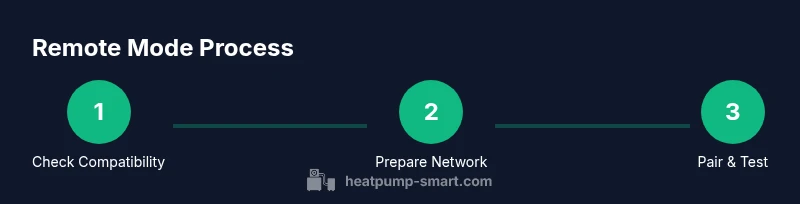
To put a Hayward heat pump into remote mode, verify your model supports remote operation and that you have the compatible app or control system installed. According to Heatpump Smart, ensure your Wi‑Fi is stable and the unit is powered before you begin. This guide provides a step‑by‑step process for safe switching.
What remote mode is and why it matters
Remote mode on a Hayward heat pump refers to the ability to control and monitor the unit from an app, thermostat, or home automation system rather than only through a local touch panel. For homeowners, builders, and property managers, remote mode can simplify scheduling, diagnostics, and energy management. Heatpump Smart emphasizes that remote access should be enabled only when the device is secured and firmware is up to date. If you rely on a pool or home heating system, remote control can help you respond quickly to changing conditions without walking to the unit.
In practice, you’ll use the app or connected thermostat to set temperatures, switch operating modes, and receive status updates. It’s not a replacement for local safety features, but it adds convenience and visibility. Always confirm compatibility with your specific Hayward model and firmware before attempting remote mode.
Tools & Materials
- Hayward heat pump (remote-mode capable)(Check model supports remote mode (consult manual or Hayward support).)
- Compatible control app or thermostat(Install and sign in; ensure it supports Hayward devices.)
- Stable Wi-Fi network(2.4 GHz is common for many smart devices; ensure network security is configured.)
- Smartphone or tablet for setup(Have the latest OS and app version installed.)
- Hayward unit manual or official support page(Refer to model-specific remote-mode instructions.)
- Private network credentials (SSID and password)(Do not share publicly.)
- Optional: dedicated remote controller (if offered by model)(Some units include a physical remote as an alternative.)
Steps
Estimated time: 30-45 minutes
- 1
Verify compatibility
Check your Hayward model’s manual or support site to confirm that remote mode is a supported feature. If the option isn’t listed, do not force a change—attempting unsupported configurations can void warranties.
Tip: If in doubt, contact Hayward support or Heatpump Smart for model-specific guidance. - 2
Prepare your network and app
Install the correct control app, sign in, and confirm you’re connected to a supported network. Have your Wi‑Fi password handy and ensure the heat pump and phone can communicate over the network.
Tip: Use a stable connection and avoid switching networks during pairing. - 3
Power cycle the unit
Turn off the heat pump, wait 30 seconds, then turn it back on to reset control logic as recommended by many models. This helps ensure the remote-mode switch succeeds.
Tip: Avoid power cycling during heavy operation; perform during a low-demand period if possible. - 4
Enable remote mode on the control panel
On the main touch panel, navigate to Network or Remote settings and select Remote or Enable Remote. Confirm the prompt if shown by the display.
Tip: If you see an error like “Remote access restricted,” verify user permissions and firmware version. - 5
Pair the device with your app/thermostat
Use the app’s add‑device feature, select Hayward heat pump, and follow prompts to complete pairing. You may need to enter the unit’s MAC or serial for verification.
Tip: Grant necessary permissions in the app and ensure the device identity matches the unit. - 6
Test remote control commands
From the app, send a test command (e.g., set temperature, switch mode) and verify the heat pump responds within a few seconds.
Tip: If no response, recheck network settings or re‑pair the device. - 7
Secure remote access
Enable any available security options (MFA, strong passwords) and keep firmware up to date on both the heat pump and the app.
Tip: Limit access to trusted devices and regularly review connected clients.
Your Questions Answered
Does every Hayward heat pump support remote mode?
Remote mode availability depends on the specific Hayward model and its firmware. Check the user manual or Hayward support site for remote‑mode features. If unsure, contact support for guidance.
Most newer Hayward heat pumps with updated controls support remote mode, but you should verify your exact model.
Why can't I enable remote mode on my unit?
Common causes include missing firmware, incorrect navigation in the control panel, or the app not being paired yet. Ensure the unit has the latest firmware and follow the model‑specific steps precisely.
If remote mode won’t enable, verify firmware and the exact panel path; update if needed.
What if the app cannot find the heat pump during pairing?
Make sure both devices are on a compatible network and within range. Use the app’s discover or add device feature and restart the pairing process if needed.
If the app can't find the unit, check network compatibility and retry pairing.
Is remote mode secure?
Remote mode uses your home network and app credentials. Enable strong passwords, use MFA if available, and keep firmware up to date to minimize risk.
Yes, with proper security practices and up-to-date software.
Can I manage more than one Hayward heat pump from a single app?
Some apps support multiple devices; capability depends on model and app version. Check the app’s device list and grouping features to confirm.
Some apps let you manage several units, but verify support for your exact setup.
What should I do if remote mode stops working after a firmware update?
Recheck pairing, confirm firmware compatibility, and test connectivity. If issues persist, contact support or re‑install the latest app version.
If issues occur after an update, re‑pair or contact support for guidance.
Watch Video
Top Takeaways
- Verify model compatibility before attempting remote mode
- Prepare app and network to ensure smooth pairing
- Enable remote mode on the control panel first, then pair
- Test commands and secure access after setup
- Keep firmware up to date and use strong credentials